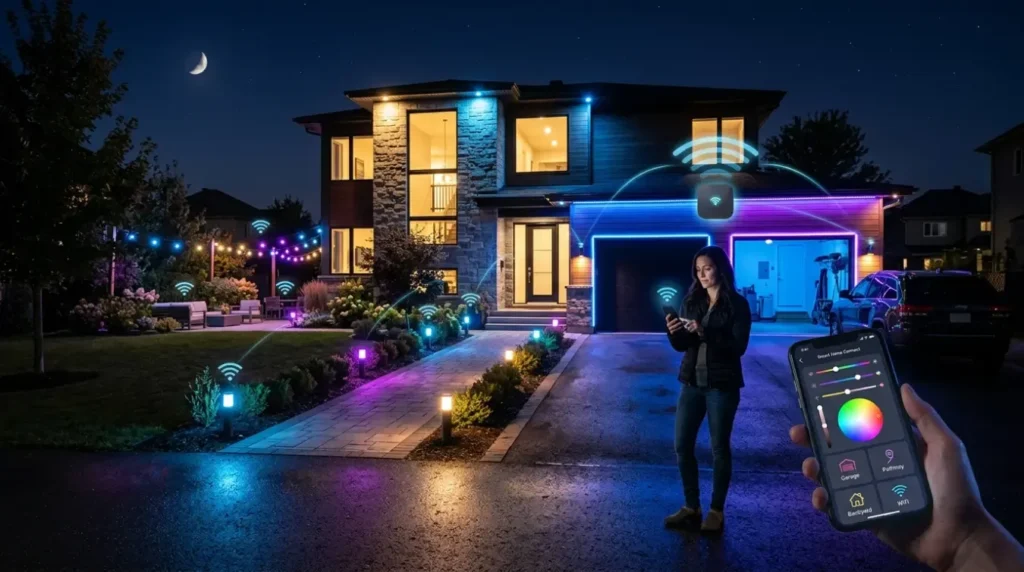
Learn how to connect smart outdoor lights to WiFi with my field-tested guide. Fix 2.4GHz issues, range dead zones, and Matter setup for a stable connection.
TL;DR: To connect smart outdoor lights to WiFi, ensure your router is set to a 2.4GHz frequency, install the light’s companion app, and put the device into pairing mode (usually by toggling power). For reliable outdoor connectivity, I recommend using a mesh WiFi system or a dedicated outdoor access point to penetrate thick exterior walls.
| Connection Method | Reliability | Range | Hardware Needed |
|---|---|---|---|
| Direct 2.4GHz WiFi | Moderate | Short (up to 50ft) | Standard Router |
| Mesh WiFi Node | High | Excellent | Eero, TP-Link Deco, etc. |
| Smart Hub (Zigbee/Thread) | Very High | Extended (Mesh) | Philips Hue Bridge / Matter Controller |
| Outdoor Extender | Low to Moderate | Long | Weatherproof Extender |
Step 1: Check Your WiFi Signal and Frequency
Connect your smart outdoor lights by ensuring your router broadcasts a 2.4GHz signal and that the installation site has at least two bars of signal on your smartphone.
Long-range outdoor connectivity is the #1 failure point I see in smart home installs. Most smart bulbs and floodlights run on the 2.4GHz band because it penetrates brick and siding better than 5GHz. However, if your phone is locked onto 5GHz, the app often won’t ‘see’ the light during setup.
Before you climb a ladder, stand where the light will be installed and check your phone’s signal bar. If it’s weak, your smart light—which has a much smaller antenna—will likely drop its connection. I’ve found that using the WiFi Alliance’s technical standards for signal strength (aiming for -65 dBm or better) is the sweet spot for 4K security camera lights and RGB sets alike.
People Also Ask
Q: Can I connect smart lights to a 5GHz network?
A: Generally, no. Most outdoor smart lights only support 2.4GHz. You may need to temporarily disable 5GHz on your router during the pairing process.
Q: Does my phone need to be on the same WiFi as the lights?
A: Yes, during the initial setup, your smartphone and the smart light must be on the same 2.4GHz network for the security handshake to occur.
Step 2: Install the App and Prep Pairing Mode
Download the manufacturer’s app, create an account, and ensure the light is in pairing mode (flashing rapidly) before attempting to connect via Bluetooth or WiFi.
Every brand has its quirks. Whether it’s Govee, Philips Hue, or Ring, the process usually starts by creating an account. Pro tip: Don’t install the light 20 feet up till you’ve paired it at ground level. I learned this the hard way after three trips up a ladder for a faulty Govee floodlight.
Check if your light supports Matter. This is the 2026 standard that makes everything cross-compatible. If it does, you can often skip the brand-specific app and scan the QR code directly into Apple Home, Google Home, or Amazon Alexa. According to最新的 Connectivity Standards Alliance (CSA) documentation Matter-enabled outdoor devices are significantly more stable in multi-vendor environments.
People Also Ask
Q: How do I put outdoor lights in pairing mode?
A: The most common method is the ‘on-off-on-off-on’ sequence with the light switch until the bulb starts pulsing or flashing.
Step 3: Managing Thick Walls and Signal Interference
Overcome WiFi range issues by installing an outdoor mesh node or a 2.4GHz signal booster within 30 feet of your light fixtures.
Exterior walls are WiFi killers. Stucco with wire mesh, brick, and low-E glass act like a Faraday cage. In my experience, if your router is in a central hallway and your lights are on the far side of a garage, you’re going to have an ‘unresponsive’ device by next Tuesday.
If you’re seeing frequent disconnects, I recommend a weatherproof WiFi extender specifically designed for the outdoors. Alternatively, consider a Powerline Adapter. These tools send data through your home’s electrical wiring, allowing you to place an internet source in a garage or shed much closer to your garden lights. The NIST guidelines on IoT security (https://www.nist.gov/pao/smart-home-and-internet-things-iot) also suggest keeping these devices updated, which requires a solid, consistent data stream.
People Also Ask
Q: What is the best WiFi range for outdoor lights?
A: Ideally, your light should be within 30-50 feet of a router or mesh node, depending on the number of walls in between.
Step 4: Troubleshooting the Connection
Fix connection errors by turning off your phone’s VPN, ensuring Bluetooth is enabled for discovery, and rebooting your router to clear IP conflicts.
If the app says ‘Device Not Found,’ don’t panic. Here is my 2026 checklist for stubborn smart fixtures:
- Toggle Bluetooth: Many modern lights use Bluetooth for the initial ‘handshake’ before handing the connection over to WiFi.
- Disable VPN: I’ve wasted hours debugging connections only to realize my phone’s VPN was blocking local network discovery.
- Check DNS Settings: Some smart lights (especially budget brands) struggle with custom DNS like Pi-hole or AdGuard.
- Firmware Updates: Once you get it connected, the first thing you should do is check for a firmware update. Manufacturers frequently release patches for WiFi stability.
People Also Ask
Q: Why won’t my smart light connect to my mesh network?
A: Some mesh systems (like Eero or Orbi) combine 2.4GHz and 5GHz into one name. You may need to use the ‘Troubleshoot’ or ‘Pause 5GHz’ feature in your router app.
Security and Long-term Stability
Secure your smart outdoor lights by placing them on a dedicated guest WiFi network and enabling WPA3 encryption on your router.
Don’t just set it and forget it. Smart outdoor lights are vulnerable because they are physically accessible. If a thief can unscrew a smart bulb, they might find a setup button that helps them compromise your local network if you haven’t secured it. Always use WPA3 encryption if your router and lights support it. I also suggest putting your outdoor IoT devices on a Guest Network. This isolates them from your main computers and NAS drives, ensuring that a cheap light strip doesn’t become a backdoor into your taxes.
People Also Ask
Q: Is it safe to have smart lights on my main WiFi?
A: It is safer to use an isolated Guest Network (VLAN) to prevent potential vulnerabilities in the light’s hardware from affecting your personal data.
Practical Use-Case Recommendations
- Large brick house with a detached garage: Install an outdoor-rated Mesh WiFi node (like the TP-Link Deco X50-Outdoor) on the garage to ensure signal reaches the driveway lights.
- Apartment balcony with poor signal: Use a Bluetooth+WiFi hybrid light; you can control it via Bluetooth locally even if the WiFi signal is spotty.
- Professional landscape setup on a budget: Use a heavy-duty smart outdoor plug (like Wyze or Kasa) to control existing ‘foolish‘ low-voltage lights rather than buying individual WiFi bulbs.
- Smart home enthusiast with multiple brands: Look specifically for ‘Matter-over-WiFi’ certified lights to ensure they play nice with Apple, Alexa, and Google simultaneously.
Frequently Asked Questions
Q: Can I control these lights away from home?
A: Yes, once connected to your WiFi, you can control them from anywhere via the cloud, provided your home router has an active internet connection.
Q: How do I connect smart outdoor lights to WiFi on Samsung phones?
A: Connect your Samsung phone to a 2.4GHz WiFi network, install the manufacturer’s app, enable Bluetooth permissions, and place the smart light into pairing mode before setup.
Q: Why won’t my smart bulb connect to WiFi?
A: Most smart bulbs fail to connect because they only support 2.4GHz WiFi, the signal is weak, or the bulb was not fully reset before pairing.
Q: Can smart bulbs connect to 5GHz WiFi?
A: In most cases, no. The majority of smart outdoor lights and bulbs only work with 2.4GHz networks because they provide better range and wall penetration.
Q: How do I connect a smart bulb to my phone?
A: Download the bulb’s companion app, connect your phone to the same 2.4GHz network, reset the bulb into pairing mode, and follow the in-app setup instructions.
Q: How do I reconnect an Alexa light bulb to a new WiFi network?
A: Reset the smart bulb, remove the old connection from the Alexa app, then reconnect the device using your new WiFi credentials.
Q: Why does my smart light keep disconnecting outdoors?
A: Weak WiFi coverage, thick exterior walls, weather interference, or overloaded routers are the most common causes of outdoor smart light disconnects.
Q: What is the best way to improve outdoor smart light WiFi range?
A: Installing a mesh WiFi node, outdoor access point, or a dedicated 2.4GHz extender near the lights usually provides the most stable connection.
Q: Why is my smart bulb blinking during setup?
A: Flashing or pulsing lights typically indicate that the smart bulb is in pairing mode and ready to connect to your WiFi network.
Conclusion
Learning how to connect smart outdoor lights to WiFi properly can save you hours of frustration and prevent constant disconnects later. In most cases, stable performance comes down to three things: a strong 2.4GHz signal, proper device placement, and reliable network hardware. Whether you’re installing simple patio bulbs, RGB landscape lights, or advanced security floodlights, taking time to optimize your setup will dramatically improve long-term reliability.
For larger homes, detached garages, or thick exterior walls, upgrading to a mesh WiFi system or adding a dedicated outdoor access point is often the smartest investment. Matter-compatible devices also make modern smart home setups far easier to manage across Apple, Google, and Alexa ecosystems.
Most importantly, don’t overlook security. Keeping your outdoor smart devices on a guest network and updating firmware regularly helps protect both performance and privacy. With the right setup, smart outdoor lighting can become one of the most useful, energy-efficient, and reliable parts of your connected home.
Z-Wave Repeater Outdoor Guides

I Am Sarah Miller is a passionate writer focused on sustainability, eco-friendly living, and modern environmental solutions. Through her work, she aims to inspire readers to make smarter, greener choices for a better future. She regularly shares insights and practical tips on her website, ecopowersence.com.